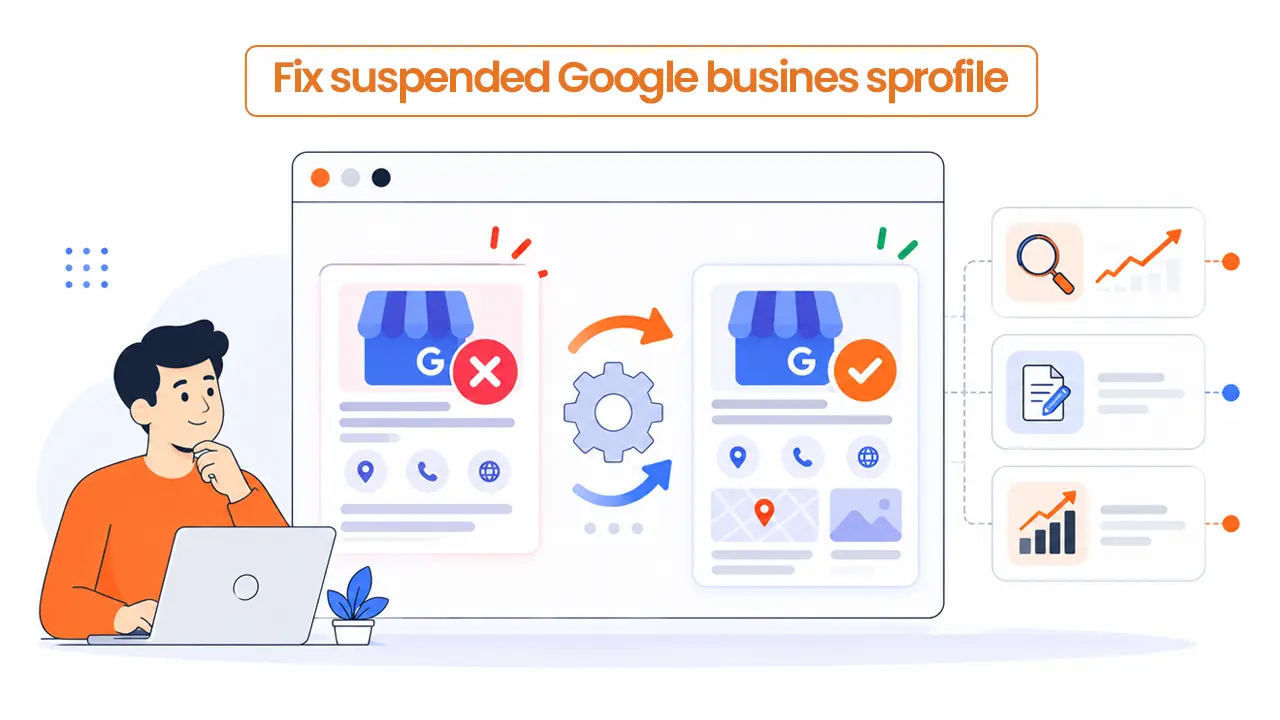
We all are afraid of this word ‘suspended’ its just give an uncomfortable feeling that things are not going well. When it comes to suspended Google business profile, calls are interrupted, listing no longer show up in maps and you don’t remember changing anything serious.
It’s stressful, but many suspensions come from a mismatch you can find and fix.
The order matters, though, because Google’s appeals tool allows only one appeal to be submitted.
What suspended Google Business Profile actually is?
Google sometimes suspend or disable Business profiles that don’t follow its guidelines. Until the profile is reinstated, you can’t manage it, and customers may not be able to reach it.
It’s rarely personal. In 2025, Google reported removing over 13 million fake Business Profiles and blocking 79 million inaccurate or unverified edits.
That’s useful to know, because it changes the job. You’re not arguing your case, instead you’re showing Google that your business is real and matches its rules.
Why businesses get suspended
There could be few reasons according to Google guidelines
- Extra words in the business name
Taglines, services, hours, phone numbers, and locations don’t belong in the name, and Google says they can lead to suspension - An address Google doesn’t accept
P.O. boxes and remote mailboxes aren’t acceptable, and virtual offices aren’t eligible. A co-working office qualifies only with clear signage, customers visiting during business hours, and your own staff on site - A service area business showing a home address
Google says service-area businesses should hide their address. Its own example is a plumber working from home - Duplicate profiles
The rule is one profile per location - A name change
Only minor changes qualify as a rebrand.
Simple things but Google flagged them because those things looked suspicious.
Anyways, below are some of the steps to fix them
Step 1: Find the reason first
Open Business profile appeals tool while signed in to the Google account that managed the profile. It shows the date of the decision, the reason, a link to the policy involved, and whether the decision can be appealed.
Read it before you change anything, and screenshot the details so you have a record of what Google said. Do not try to fix the wrong things as it’ll just waste your appeal… and do not create a new profile too
Step 2: Fix the cause
Match the fix to the reason. I’m using the plumber example:
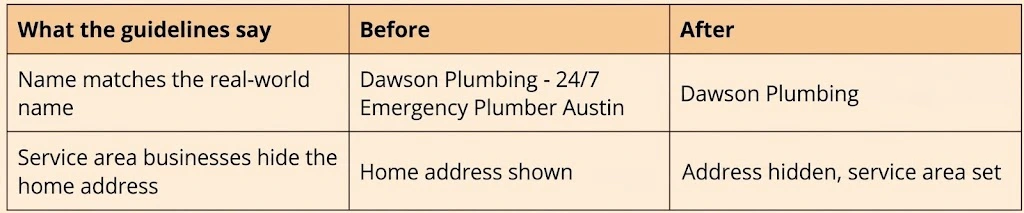
Two more checks while you’re in there: use a phone number your business controls, and a website that represents your business. Then read the guidelines against your profile once more, so a second issue isn’t waiting behind the first.
Step 3: Gather your evidence
Google lists what can strengthen an appeal:
- Official business registration
- A business license
- Tax certificates
- Business utility bills
Google advises checking that the business name and address on each document match your profile. If they don’t, fix that before you submit. Gather everything first, so you’re not hunting for a utility bill halfway through the form.
Step 4: Submit one clear appeal
In the appeals tool, select the profile and the decision, attach your documents, and use the text box to explain.
Keep the message short and factual: what was wrong, what you changed, and what’s attached. Leave out long backstories and anything you can’t support with a document. For example:
“Our profile name included service and location text. We’ve changed it to our registered name, Dawson Plumbing, and hidden our home address because we serve customers at their locations. Our business license and a utility bill are attached.”
Before you submit, check that:
- The name matches your signage, website, and documents
- The address matches your documents, or is hidden if you’re a service area business
- Only one profile exists for the location
- Every document you want reviewed is attached
Then confirm that all evidence is attached and submit. Google emails you the decision, and the tool shows the status: Submitted, Approved, Not Approved, Can’t be appealed, or Eligible for appeal.
On timing, Google’s help page doesn’t give a number. Practitioners report anything from a few days to a few weeks, so plan for the wait.
Step 5: If it’s denied
Google may allow an additional review of a denied appeal, and you can add evidence you didn’t include the first time.
Also check whether your Google Account itself is restricted. If it is, the profiles it manages are suspended too.
Now you’ll have to appeal the restriction first on your account’s restrictions page, then appeal the profile.
Should you do this yourself?
If the reason is clear and you have the documents, yes. Name or address fix and one well prepared appeal is within reach for most owners, and Google built the tool for exactly this.
Consider getting help if:
- The reason is unclear, or the tool says the decision can’t be appealed
- An appeal has already been denied
- Your account is restricted
- You have many suspended locations (Google has a bulk option for 10 or more)
- The profile brings in a large share of your calls, so every week of delay costs you
No one outside Google can guarantee reinstatement, because Google makes the decision. What an experienced person can do is review your evidence and wording before you submit. That matters when you only get one appeal.
Keeping suspended Google business profile from happening again
Once the profile is back, treat edits to your name, address, and categories as changes worth checking against the guidelines first. Also watch for edits you didn’t make: Google says it’s rolling out email alerts so verified, active owners can review important suggested edits before they go live.
If you’d like a second look at your appeal before you send it, get in touch and I’ll go over it with you.