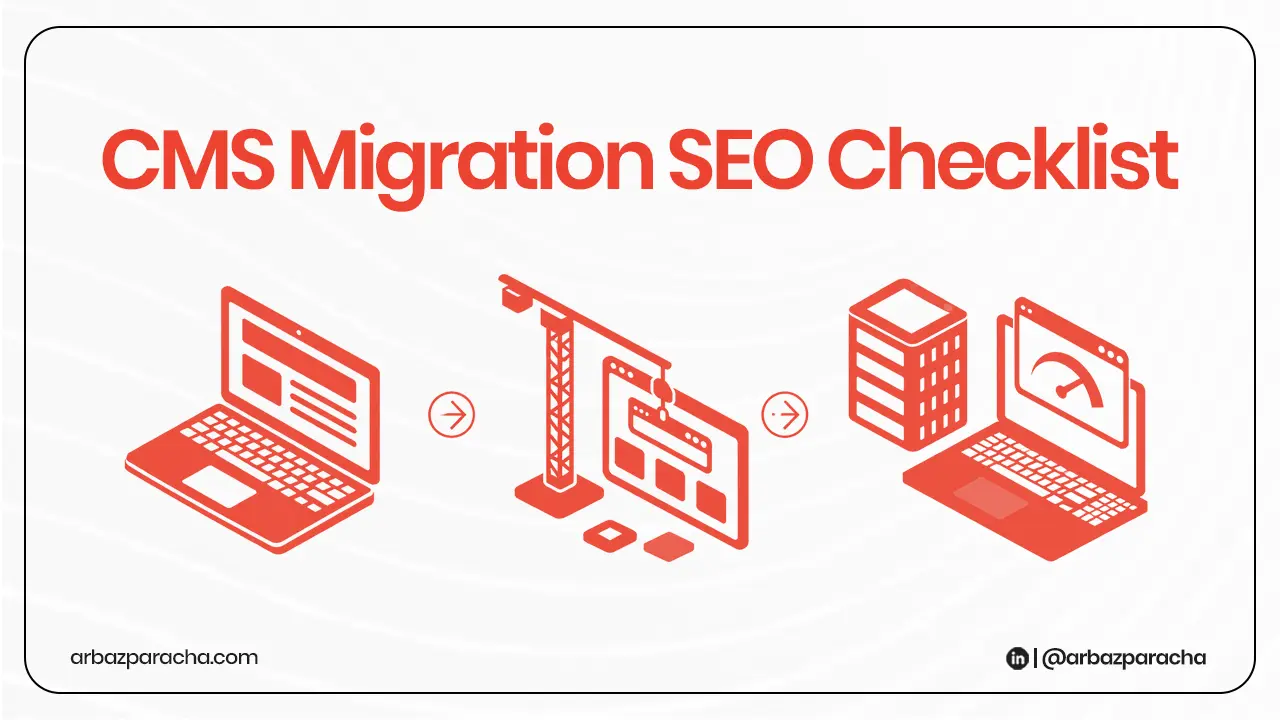
So you migrated your CMS and now your traffic’s dropping. Fun times, right? but you know you need a CMS migration SEO checklist.
Whether you moved from WordPress to a custom CMS, switched to Shopify, or built something from scratch, the post migration traffic drop is unfortunately common. But most of these issues are fixable once you know where to look.
I’ve put together this CMS migration checklist based on the stuff that actually breaks during migrations. Let’s get into it…
1. Broken Redirects In CMS migration
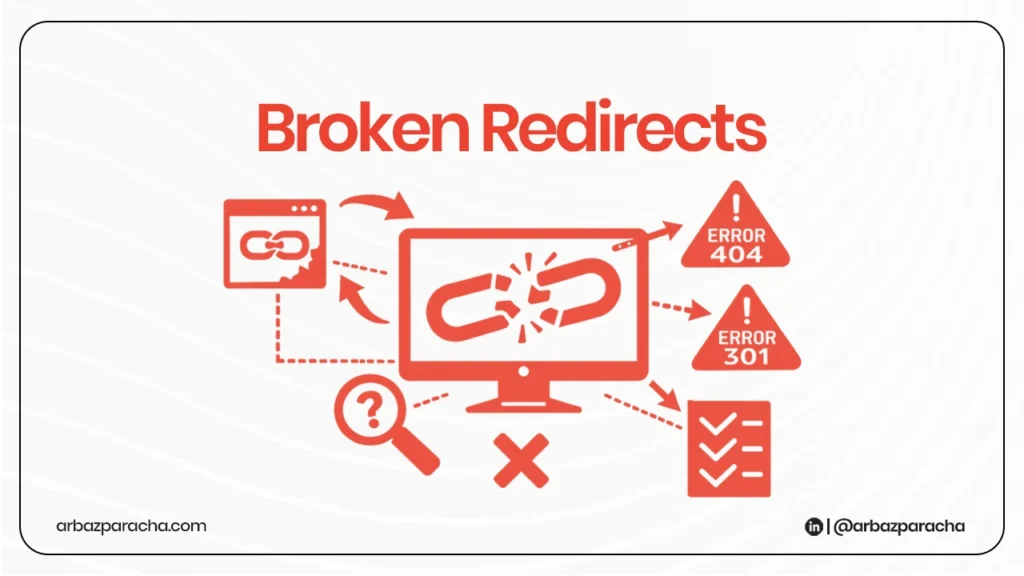
This is usually the culprit. You changed your URL structure, and now half your old URLs are showing 404s instead of redirecting to the new pages.
Open Google Search Console and check your Coverage report. Look for a sudden spike in 404 errors. Then pull up your old sitemap and start spot checking URLs. Pick random pages from different sections of your site and see if they redirect properly.
When you’re doing an SEO migration for custom SEO, this gets trickier because you can’t just install a plugin. You need to manually map old URLs to new ones and set up 301 redirects at the server level. If you moved thousands of pages, even a 95% redirect success rate means hundreds of dead links.
Test your most important pages first, the ones that actually drove traffic. Then work through the rest systematically.
2. Sitemap Disappeared
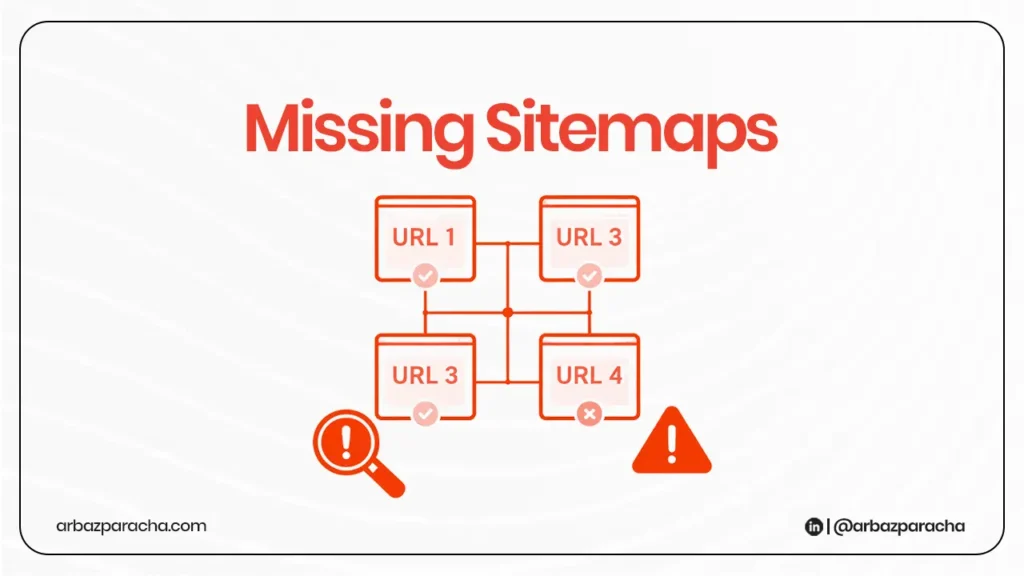
Check if your sitemap is still accessible at /sitemap.xml. Now look at what’s actually in it. Does it include all your important pages? Are there URLs that shouldn’t be indexed?
During CMS migration SEO work, the sitemap gets overlooked. Maybe it didn’t carry over. Maybe the new CMS generates it differently. Maybe it’s listing thousands of parameter URLs that shouldn’t be there.
Make sure your sitemap is submitted in Google Search Console and while you’re there, check if Google is actually processing it without errors.
3. Canonical Tags Pointing The Wrong Place
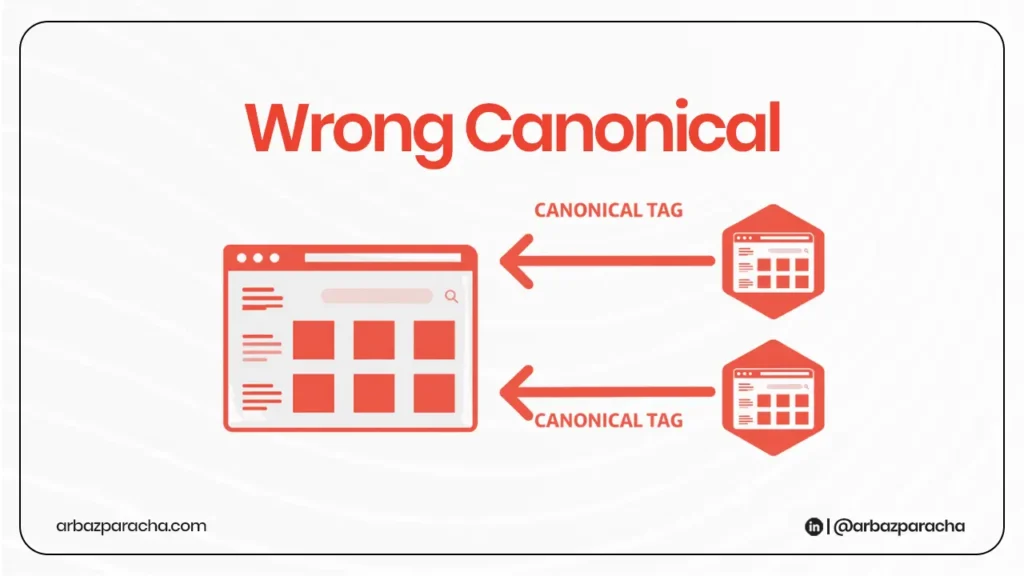
Your pages are live, redirects work, but your canonical tags are still pointing to your old domain or old URL structure.
View the source code on a few key pages and search for rel=”canonical”. It should point to the current URL you’re on (or the preferred version if you have duplicates). If it’s pointing to URLs on your old domain or old structure, Google’s going to be confused about which version to index.
This happens a lot with custom CMS migrations because canonical tags need to be programmed into your templates. If the dev team hardcoded old URLs or used the wrong variables, every page could have incorrect canonicals.
4. Robots.txt Blocking Everything
Yeah, this happens more than you’d think. Someone blocks the staging site from being indexed during development, then that robots.txt file goes live with the launch.
Go to yoursite.com/robots.txt and check what it says. If you see Disallow: / under User-agent: *, you’ve found your problem. Your entire site is telling search engines to stay away.
Even if it’s not blocking everything, check that it’s not blocking important sections. Sometimes /blog/ or /products/ gets accidentally added to the disallow list.
5. Pages Stuck with Noindex Tags
Similar to robots.txt, but more targeted. Individual pages might have <meta name=”robots” content=”noindex”> in their headers, telling Google not to index them.
This often happens when you migrate staging content to production and forget to remove the noindex tags. Or when the new CMS template has different default settings than the old one.
Check your important pages manually, and use a crawler like Screaming Frog to scan your whole site for noindex tags. For an custom CMS projects, you’ll want to verify that your template logic is applying the right indexing directives based on page type and status.
6. Broken Internal Links
You updated the URLs, but did you update all the internal links pointing to those pages? If your blog posts, navigation menus, and footer links are still pointing to old URLs, you’re creating an unnecessary redirect chain or worse, broken links.
Google can follow redirects, but it’s cleaner if your internal links point directly to the current URLs. Plus, users clicking broken internal links will bounce, which doesn’t help your metrics.
Run a site crawler and look for internal links that return 3xx or 4xx status codes. Fix them in batches, starting with your main navigation and most-visited pages.
7. Site Speed
New CMS doesn’t automatically mean better performance. Maybe your old WordPress site was optimized over years, and now your custom CMS is loading uncompressed images or making 50 database queries per page.
Check your Core Web Vitals in Search Console. Run a few key pages through PageSpeed Insights. Compare the load times to your old site.
Site speed is a ranking factor, but more importantly, slow sites make users leave. If your bounce rate shot up after migration, speed could be why.
8. Mobile Rendering Is Broken
Google uses mobile-first indexing, so if your mobile version is messed up, your rankings will suffer. Maybe your responsive design broke during migration. Maybe important content is hidden on mobile. Maybe navigation doesn’t work on touchscreens.
Use Google’s Mobile-Friendly Test tool to check a few pages. Better yet, actually pull out your phone and navigate your site like a user would.
Can you access everything? Does it look right? Is text readable without zooming?
This is especially important for custom CMS builds where responsive behavior needs to be coded from scratch.
9. Structured Data Got Left Behind
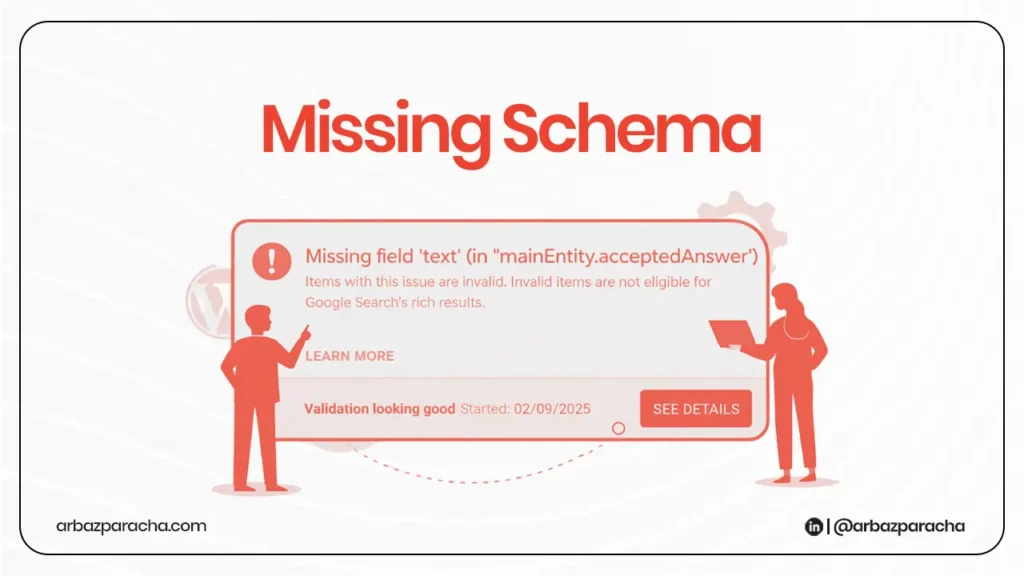
If your old site had schema markup for products, articles, FAQs, or anything else, did that make it to the new site? Structured data helps Google understand your content and can earn you rich results in search.
Use Google’s Rich Results Test to check if your markup is still there and still valid. If you were getting rich snippets before migration and now you’re not, this could be why.
With custom CMS SEO migration, you need to rebuild schema implementation in your templates. It won’t carry over automatically like it might between similar platforms.
10. Google Analytics and Search Console Aren’t Set Up Right
If your tracking is broken, you might think traffic dropped when really you just stopped measuring it. Or you might not notice issues because you’re looking at the wrong data.
Verify that Google Analytics is firing on all pages. Check that events and goals still work. Make sure Search Console is verified for the new property (if your domain changed) and that you’ve submitted your new sitemap.
Also check if you’re still tracking the old domain separately. You’ll want to monitor both during the transition period to see the full picture.
Fix the stuff
Finding problems is one thing but fixing them during or after a migration requires some planning:
For redirects and broken links:
Create a spreadsheet mapping old URLs to new ones. Test each redirect. Fix the ones that don’t work. This is tedious but necessary.
For technical issues:
These usually need developer access to fix. Document exactly what’s wrong and what the correct implementation should be.
For content and structure problems:
Sometimes the new CMS just handles things differently. You might need to adjust your approach rather than trying to perfectly replicate the old site.
Track your fixes and monitor their impact in Search Console. Traffic recovery after a migration usually takes weeks, not days. Google needs time to recrawl your site and process the changes.
Bottom Line
Don’t try to fix everything at once, prioritize based on what’s causing traffic loss and remember that some temporary fluctuation is normal even with a perfect migration. Google needs time to adjust.
If traffic is still down after addressing these issues, you might be dealing with deeper problems, content that didn’t migrate properly, authority signals that got lost, or UX issues driving users away. But in most cases, one or more items from this checklist will be the issue