Google favors fresh and updated content. You are reading an article and something feels off. The information seems outdated, design looks like it hasn’t been touched in years. As if it seems website update was done but you are not sure. So the obvious question come in your mind… when this website was last updated?
It sounds pretty simple most people have no idea how to actually find that answer and more importantly, most website owners have no idea their own site is signaling changed to every visitor and to Google.
This guide covers exactly how to check when any website was last updated
Why Website Update Date Actually Matters

Before jumping into the how, you need to understand what is actually at stake. Because this is not just a curiosity question.
Google Rewards Fresh Content
Google uses something called Query Deserves Freshness, a signal that tells its algorithm certain searches need up to date results. If your pages haven’t been touched in 18 months, Google starts deprioritizing them, especially in competitive industries like real estate, healthcare, and finance.
HubSpot found that websites publishing fresh content consistently generate 55% more organic traffic than those that don’t. And not just Google anymore, AI search tools like Perplexity and ChatGPT Search also prioritize recently updated content when pulling answers. If your page is stale, it is getting skipped by both.
Visitors Make Trust Decisions Based on It
Visitors notice these things instantly and leave all because the site feels abandoned.
Stanford’s Web Credibility Research found 75% of users judge credibility based on website freshness. And when AI tools research vendors on behalf of buyers, stale content either gets ignored or worse, presented as current fact to your potential customer.
It Affects Competitor Research Too
A competitor’s update history tells you whether they are actively investing in content or coasting. If their top ranking page hasn’t been touched in two years and yours is fresh and more thorough, that is a real ranking opportunity sitting right there.
Ways of Checking the Website Update Date

There is no single method that works for every website. Some sites display dates openly while others hide them completely. Here are the most reliable methods, starting from the simplest.
1. Check the Footer and Page Itself First
Before doing anything technical, scroll to the bottom of the page. Many websites display a copyright year in the footer like “© 2026 Company Name.” If it says 2022, that is your first red flag.
Also check blog posts and articles directly. Most of the plugins display a published and last modified date under the title or at the bottom of the post. If those dates are visible, you already have your answer.
2. Use Google Search Date Filter
This is one of the fastest ways to find when a page was last indexed with fresh content.
Go to Google and search for the website or page you want to check. Then click Tools under the search bar, select Any Time, and change it to a custom date range or choose Past Year. Google will show you results it considers fresh within that window
You can also type this directly into Google:
site:example.com… then click Tools and filter by date.
3. Check Page Source Code for Meta Date Tags
This method works on almost any website and gives you the most accurate date information available.
Right-click anywhere on the webpage and select View Page Source or press Ctrl+U on Windows / Cmd+Option+U on Mac.
Then press Ctrl+F to open the search bar and look for these tags:
- article:modified_time
- article:published_time
- dateModified
- datePublished
- last-modified
These tags tell you exactly when the page was published and when it was last modified, even if that information is hidden from the front end.
4. Use Google Cache
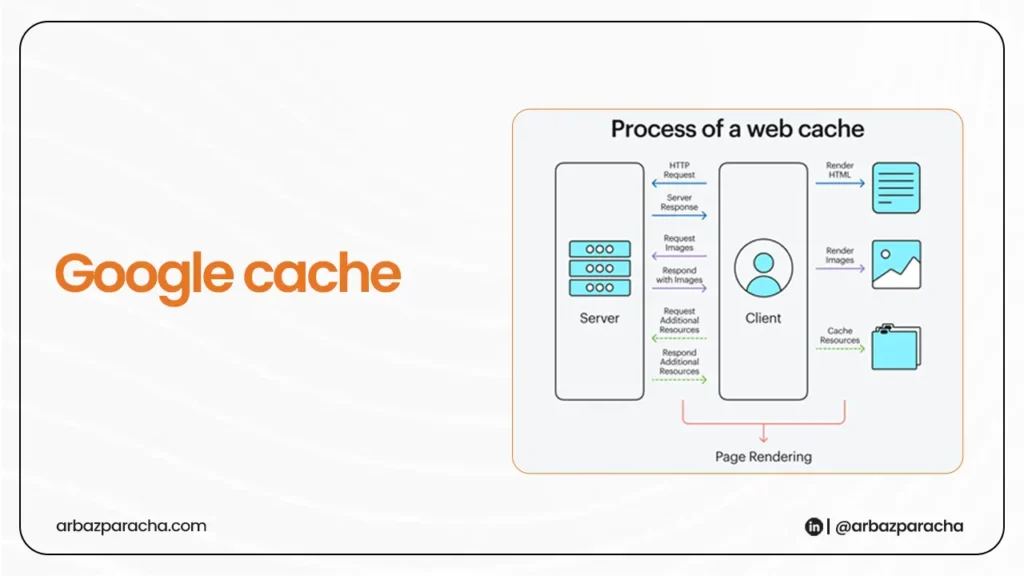
Google takes a snapshot of every page it crawls. That snapshot is called a cache and it includes the date Google last visited that page.
To access it, go to Google and search for the page. Click the three dots next to the result, then select Cached. At the top of the cached page, Google shows the exact date and time it last crawled that URL.
This tells you when Google last considered that page worth revisiting, which is a strong freshness signal in itself. If Google cached your page six months ago and hasn’t been back since, that is a sign your content or internal linking structure is not prompting regular recrawling.
5. Check the XML Sitemap
Every well built website has an XML sitemap, a file that tells search engines which pages exist and when they were last updated.
To find it, type one of these into your browser:
- example.com/sitemap.xml
- example.com/sitemap_index.xml
Once you open it, look for the <lastmod> tag next to each URL. That date is what the website is telling Google about when each page was last modified.
TIP: Here is an important SEO note… some plugins like Yoast SEO auto-generate <lastmod>dates that update every time you save a post, even if you only fixed a typo. Google has gotten smarter about this.
If your lastmod dates are constantly changing but your content depth isn’t improving, Google starts ignoring those signals.
6. Use Wayback Machine
The Wayback Machine at web.archive.org is an internet archive that has been taking snapshots of websites since 1996. Type any URL into it and you will see a calendar showing every date that website was archived.
7. Use a Website Last Updated Checker Tool
If you want a quick answer without any manual digging, several free tools do this automatically.
- Duplichecker’s Last Updated Checker, paste any URL and it returns the last modified date pulled from the page headers
- Small SEO Tools Website Reviewer, gives a broader site health snapshot including update recency
- W3C Validator, checks HTTP headers including last-modified dates at a technical level
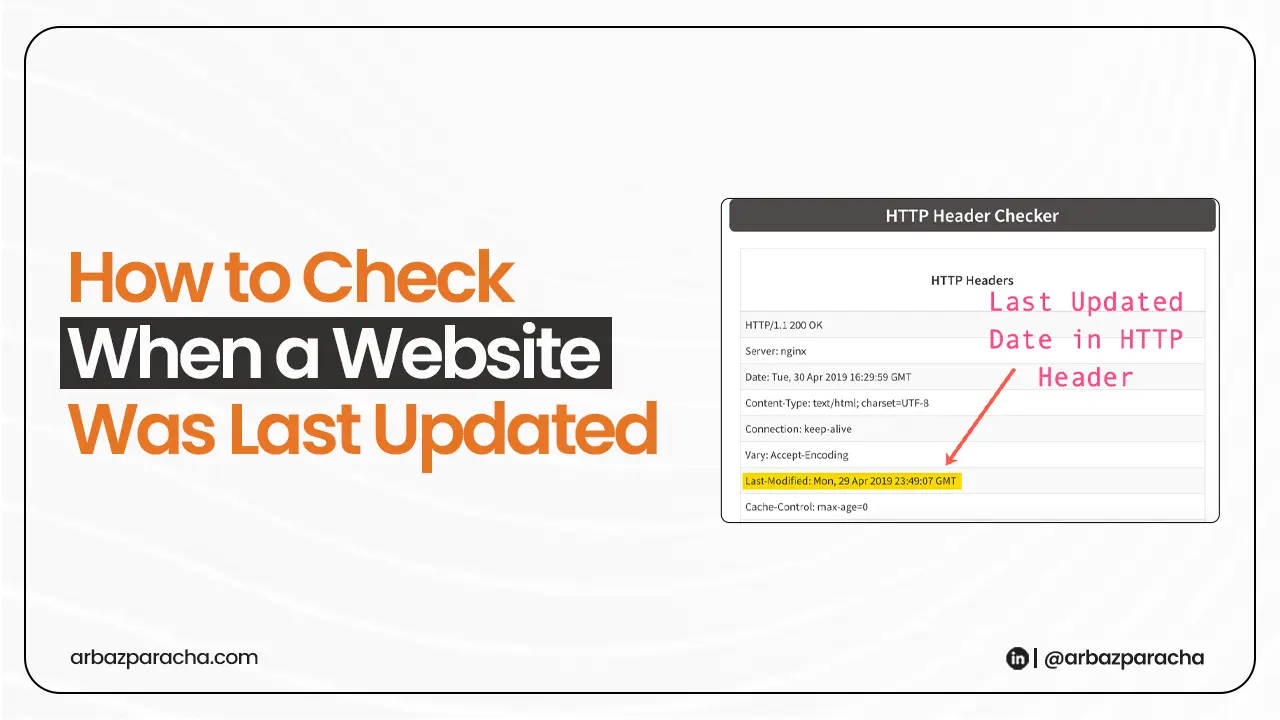
These tools pull the Last Modified header from the server response, information sent every time a browser or tool requests a page, often invisible to regular visitors but readable by these checkers.
When None of These Methods Work

Some websites are built in a way that deliberately hides all date information, no meta tags, no visible dates, no sitemap lastmod values, and server headers that don’t return a last-modified date.
When that happens, it usually means one of two things. Either the website was built without SEO in mind, which is a problem in itself
Or
the owner intentionally removed dates, sometimes done to make old content appear evergreen.
In this case your best option is the Wayback Machine. Even if a site hides everything else, archive snapshots don’t lie. Look at the frequency of archived versions, if snapshots are clustered around one period and then drop off, the site likely went inactive around that time.
You can also check their blog RSS feed if they have one… example.com/feed, which usually carries publication dates regardless of what the site displays publicly.
When you know the last updated date of the website you know whether business is active, can be trusted and whether Google or any AI search tool is likely surfacing it to anyone
Start with one page. Update it properly, not just a date change, but real added value. Then build from there.