People come to me complaining how their website is not performing well when it looks fine on the front end. But they are not aware that Google crawls the backend and most CMS-built websites have technical SEO Issues hiding there that kill rankings.
Here’s where to look and what to fix.
Why CMS Websites Have More Technical Issues?
Platforms like WordPress, Wix, and Webflow generate automatic code, duplicate URLs, and bloated structure behind the scenes.
You didn’t create those problems, your CMS did.
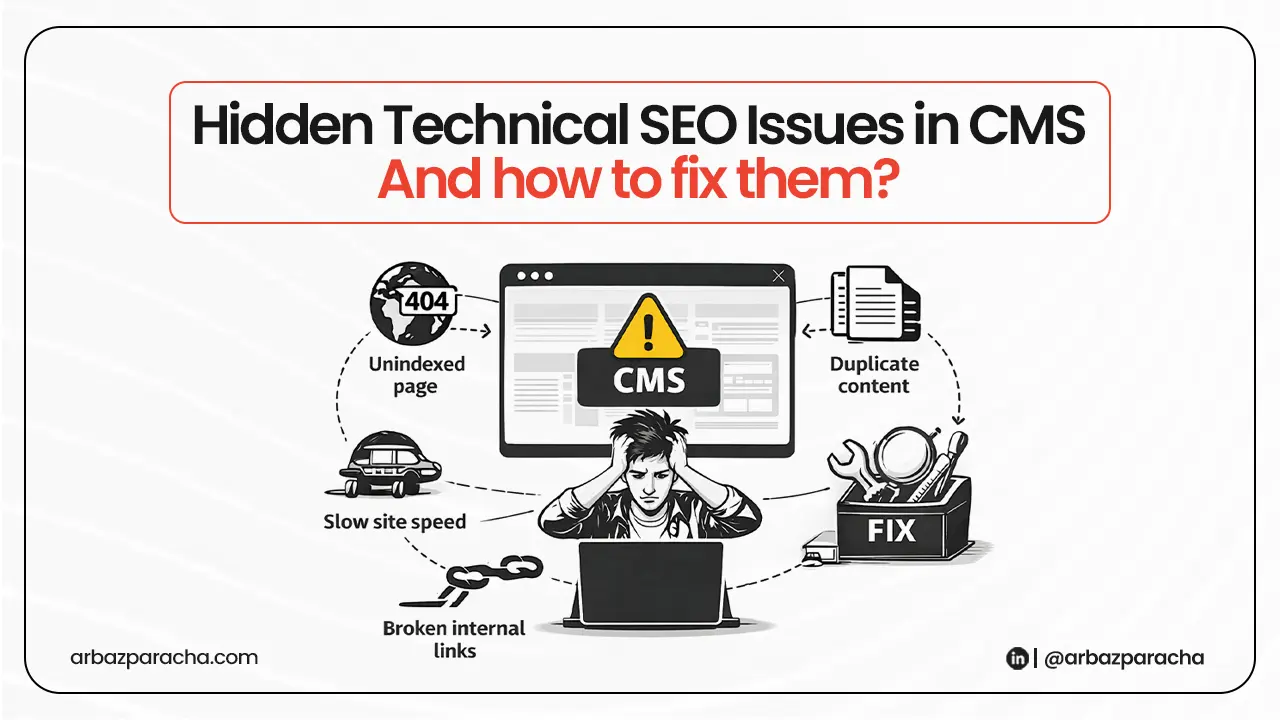
Common Technical SEO Issues
1. Pages Google Can’t Crawl
Go to Google Search Console → Coverage and look for pages marked “Blocked by robots.txt” or “Crawled but not indexed.”
This usually happens silently after a plugin update or theme switch.
Fix: Check your robots.txt and make sure your key service and location pages aren’t accidentally blocked.
2. Duplicate Content Your CMS Creates Automatically
WordPress generates multiple URLs for the same content, like tag pages, author archives, paginated versions. Google splits your ranking signal between all of them.
Fix: In Rank Math or Yoast, go to taxonomies and noindex any archives you’re not using as real content.
3. Missing or Broken Canonical Tags
Without this, Google may treat yoursite.com and www.yoursite.com as two separate competing websites.
Fix: View page source and search for canonical. It should point to one clean, consistent URL. Fix it inside your SEO plugin settings.
4. Slow Page Speed
The usual culprits in CMS websites are uncompressed images and too many plugins loading on every page.
Fix: Run your URL through Google PageSpeed Insights. Start with image compression (ShortPixel or Smush) and defer non-critical JavaScript.
5. Broken Internal Links
Common after migrations or when pages get deleted and recreated. Every broken link is a dead end for Google.
Fix: Run Screaming Frog (free up to 500 URLs), export the 404 list, and set up 301 redirects to the correct pages.
6. Missing Meta Titles and Descriptions
When a page has no meta title, Google writes one from random on-page text. It’s rarely useful.
Fix: Filter by “missing meta title” in your SEO plugin. Write them manually for your homepage, service pages, and location pages first.
7. Messy URL Structure
URLs like yoursite.com/?p=123 tell Google nothing about the page.
Fix: In WordPress go to Settings → Permalinks → Post Name. Keep URLs short, readable, and keyword-relevant.
How to Audit Your Site Right Now (Free Tools)
- Google Search Console
crawl errors, coverage issues, penalties - PageSpeed Insights
speed and Core Web Vitals per URL - Screaming Frog
crawls your site like Google does - Rank Math / Yoast dashboard
built-in audit for common on-page issues
Run these four and you’ll know exactly where the problems are.
When You Actually Need a Developer
Most of the above is fixable through CMS settings. But bring someone in when:
- You have hundreds of stacked redirect chains
- Your CMS is generating thousands of duplicate URLs through dynamic parameters
- You’re migrating platforms and want to protect existing rankings
- Page speed is still failing after plugin-level fixes. that usually means the theme or hosting is the problem
Fix the Foundation First
Poor SEO results are rarely a content problem. They’re usually a foundation problem, errors that were never fixed and a CMS quietly working against you for months.
Fix the technical layer and everything else in your marketing starts performing the way it should.
Want this audit done properly?